
How to fix Wyze Cam v3 clicking noise continuous
Disclosure: As an Amazon Associate I earn from qualifying purchases. This technical guide may contain affiliate links for replacement hardware and diagnostic tools.
A continuous clicking noise in a Wyze Cam v3 is caused by the rapid cycling of the electromechanical infrared (IR) cut filter solenoid, triggered by ambient light threshold oscillation, insufficient DC voltage delivery, or a bootlooping Ingenic SoC firmware state.Verified Replacement Hardware & Test Gear
Click any component image or button to verify current Amazon stock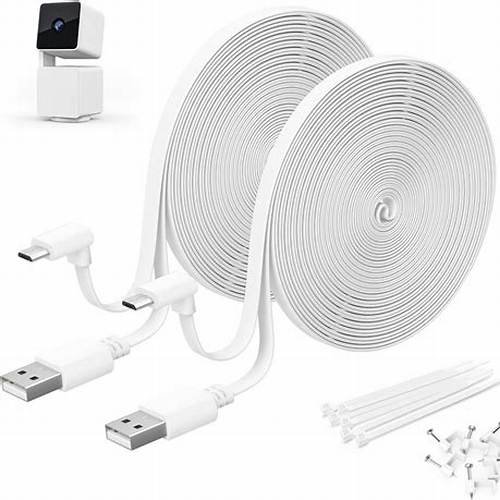 Outdoor Power Delivery
Weatherproof Outdoor Power Adapter & Flat Cable for Wyze/Arlo
Weatherproof 5V 2A DC Feed
Outdoor Power Delivery
Weatherproof Outdoor Power Adapter & Flat Cable for Wyze/Arlo
Weatherproof 5V 2A DC Feed
 Continuous NVRNAND Media
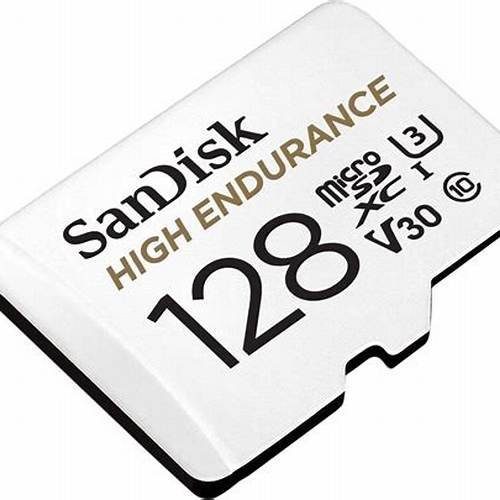
SanDisk High Endurance 128GB MicroSDXC Video Monitoring Card
High-Cycle Video Recording Card
Continuous NVRNAND Media
SanDisk High Endurance 128GB MicroSDXC Video Monitoring Card
High-Cycle Video Recording Card
 Exterior 2.4GHz RF Boost
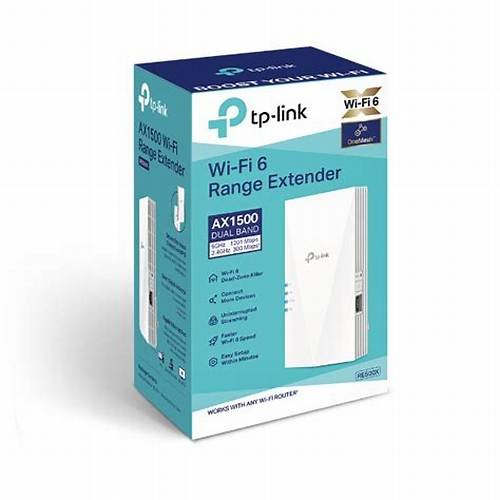
TP-Link RE500X Wi-Fi 6 Range Extender for Outdoor Cameras
High-Gain Masonry Penetration
Exterior 2.4GHz RF Boost
TP-Link RE500X Wi-Fi 6 Range Extender for Outdoor Cameras
High-Gain Masonry Penetration
Root Cause Analysis: Electromechanical and Electrical Architecture
The Wyze Cam v3 uses an internal mechanical IR-cut filter assembly positioned directly between the optical lens elements and the CMOS image sensor. During daytime operation, the camera energizes a miniature bi-stable solenoid to slide an IR-blocking glass element into the optical path, preventing infrared light from washing out the color spectrum. In low-light conditions, the system reverses the polarity or releases the mechanical latch to retract the IR-cut glass and activates the 850nm or 940nm IR illumination LEDs, switching the video feed to monochrome.
When this clicking becomes continuous and rhythmic, it indicates that the hardware driver is stuck in an infinite state-change loop. This instability stems from three primary engineering vulnerabilities:
- Optical Feedback and Hysteresis Failure: The camera’s image signal processor (ISP) and photodiode evaluate incoming lux values to determine night-mode transitions. If the switching threshold lacks sufficient hysteresis, an infinite loop occurs: low light triggers Night Mode → the integrated IR LEDs illuminate nearby obstacles → the sensor registers an artificial lux spike → Day Mode engages → lux drops immediately → Night Mode re-engages.
- Input Voltage Droop and Power Rail Ripple: The Wyze Cam v3 requires a stable 5V DC supply with a minimum of 1.0A (5W). If supplied via an out-of-spec power adapter, low-gauge extension cable (e.g., 28 AWG over 20+ feet), or corroded micro-USB terminals, the camera experiences critical line impedance. When the high-draw IR LEDs and solenoid engage simultaneously, the resulting inrush current drops the voltage below the operational threshold (<4.75V DC), browning out the logic board and forcing an immediate peripheral reset.
- Kernel Bootlooping and Watchdog Timer Resets: The internal Linux kernel initializes hardware drivers sequentially upon boot. The IR-cut solenoid click is part of the Power-On Self-Test (POST). If the kernel panics due to corrupted internal flash memory, a crashed daemon (such as
iCamera), or a failed over-the-air (OTA) update, the hardware watchdog restarts the board continuously, yielding an audible click every 3 to 15 seconds.
Systematic Diagnostic and Resolution Protocol
Phase 1: Eliminating Optical and Environmental Hysteresis
To eliminate software switching loops caused by photon feedback:
- Open the Wyze application, navigate to Camera Settings → Advanced Settings → Night Vision Mode.
- Manually set the parameter to Off. If the clicking stops immediately, the mechanical solenoid is structurally functional, and the issue is pure optical-threshold bounce.
- Check the camera’s physical placement. If a wall, soffit, window, or weather-shield is within 12 inches of the lens, adjust the angle. Highly reflective surfaces bounce IR photons directly back into the light sensor.
- Set Night Vision Conditions from Dusk to Dark to widen the ISP lux tolerance.
- If running custom firmware or RTSP configurations, ensure that automated auto-switching logic scripts are not conflicting with internal lux triggers.
Phase 2: Electrical Verification and Line Impedance Remediation
Electrical under-voltage is the primary culprit of clicking that persists regardless of software settings:
- Disconnect all third-party USB extension cables, inline power splitters, and unrated PoE (Power over Ethernet) 5V step-down splitters.
- Connect the device directly to the original OEM Wyze 5V 1A/2A power brick using a short (under 6 feet), high-quality cable with a minimum conductor gauge of 24 AWG for power.
- Use a digital multimeter to measure the DC voltage across pins 1 (VBUS) and 5 (GND) of the micro-USB terminal under load. Voltage must read between 4.95V DC and 5.25V DC. If voltage drops below 4.75V DC when the click occurs, discard the power supply 🔗 🔗 🔗 🔗.
- Ensure the camera is connected to a dedicated power outlet or a line-conditioned UPS to prevent brownouts induced by inductive loads (refrigerators, HVAC units) on the same circuit.
Phase 3: Resolving Mechanical Solenoid Stiction
The IR-cut filter slider operates on micro-rails that can bind due to thermal expansion, manufacturing flash, or environmental contamination:
- Disconnect the camera entirely from its power source.
- Hold the camera firmly and lightly tap the plastic housing against the palm of your hand on each axis. This can dislodge a physically stuck IR-cut slider mechanism trapped mid-travel.
- Inspect the lens faceplate for moisture ingress or physical deformation caused by thermal cycling. If internal condensation has pooled near the solenoid coils, the electromechanical switch will short to ground, continuously triggering the driver circuit.
Phase 4: Low-Level Firmware Recovery and Partition Reflash
If the clicking persists alongside an alternating yellow/blue LED indicator, the device is stuck in an operational bootloop. A manual, low-level flash using an offline microSD card is required to rewrite the U-Boot and root filesystem partitions.
- Acquire a 32GB or smaller microSD card (Class 10, UHS-1).
- Format the card using a dedicated partition utility to FAT32 with an allocation unit size of 32 KB (exFAT will fail to read during bootloader execution).
- Download the specific stable firmware binary (e.g., version 4.36.x.x) from the official Wyze Release Notes repository.
- Rename the extracted file strictly to
demo_wcv3.binand place it in the root directory of the microSD card. - Unplug the power cable from the Wyze Cam v3.
- Insert the prepared microSD card into the camera’s slot.
- Press and hold the physical Setup button located on the base of the camera.
- While depressing the button, plug the micro-USB power cable back into the unit.
- Maintain pressure on the Setup button for 3 to 6 seconds until the status light changes to a solid purple (blue and yellow illuminators active simultaneously), then release.
- Allow 4 to 6 minutes for the device to flash the EEPROM and reboot automatically. Do not interrupt power during this process. A single, distinct click followed by a blinking yellow light confirms recovery.
Technical Troubleshooting and Parameter Reference
| Diagnostic Test | Operational Threshold / Target | Observed Failure State | Direct Action Required |
|---|---|---|---|
| Input Operating Voltage | 5.0V DC ± 5% (4.75V – 5.25V) | < 4.70V DC during IR initialization | Replace adapter with a verified 5V/2A supply; eliminate long >28 AWG wire runs. Check Outdoor Power Delivery on Amazon ↗ |
| Night Vision Mode Logic | State = Static (Off / On / Auto with delay) | State switches > 1 time every 10 seconds | Lock state to ‘Off’ or relocate optical axis away from high-albedo IR surfaces. Check Continuous NVRNAND Media on Amazon ↗ |
| Firmware Boot Cycle | Status LED transitions: Yellow → Flashing Blue → Solid Blue | Continuous Yellow → Brief Blue → Click → Yellow | Perform clean manual offline flashing via FAT32 microSD (demo_wcv3.bin).Check Exterior 2.4GHz RF Boost on Amazon ↗ |
| Mechanical Slider Mobility | Clean click on mode transition; silent thereafter | Muffled, scraping click or multiple rapid clicks | Physical tap clearance; verify no seal rupture or internal moisture ingress. |
| Current Draw Under Load | ~0.35A (Day), ~0.65A–0.85A (Night with IR) | Spikes > 1.2A or crashes out to 0A | Internal solenoid coil short; submit hardware RMA or replace unit. |
Hardware Deprecation and Component Failure
If manual firmware re-flashing completes successfully, the input voltage is validated under load at 5.0V DC, and the camera continues to click continuously without establishing network association (DHCP lease request absent on the gateway router), the failure is component-level. The integrated solenoid H-bridge driver circuit on the mainboard has sustained an over-current short, continuously pulsing power to the electromagnetic latch. In this scenario, the camera is physically degraded and requires motherboard-level component rework or full unit RMA replacement.
🔧 Need Replacement Hardware or Diagnostic Tools?
If your troubleshooting indicates a hardware failure, check the current prices and compatibility for Wyze Cam v3 Pro on Amazon:
Check Price & Availability on Amazon →