
UniFi Cloud Key Gen2 Plus offline blinking white
Disclosure: As an Amazon Associate I earn from qualifying purchases. This technical guide may contain affiliate links for replacement hardware and diagnostic tools.
A UniFi Cloud Key Gen2 Plus (UCK-G2-Plus) with a blinking white LED is trapped in a pre-boot or early initialization state, typically caused by a corrupted internal filesystem, storage drive (HDD) hardware failure, an interrupted UniFi OS firmware update, or inadequate power delivery over PoE/USB-C.
Verified Replacement Hardware & Test Gear
Click any component image or button to verify current Amazon stock Long-Life Camera Cells
Energizer Ultimate Lithium AA Batteries (for Blink Outdoor) / CR2032
OEM Required 1.5V Lithium Spec
Long-Life Camera Cells
Energizer Ultimate Lithium AA Batteries (for Blink Outdoor) / CR2032
OEM Required 1.5V Lithium Spec
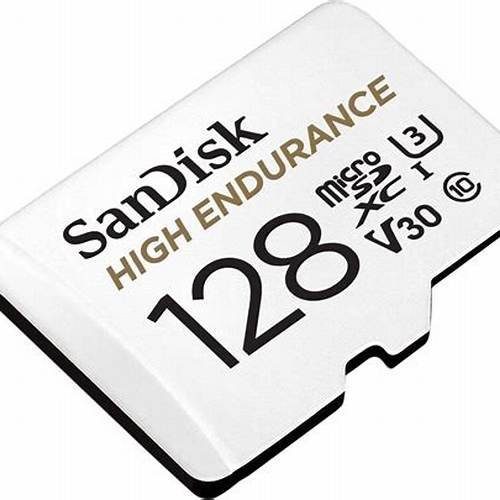 Sync Module Local Storage
SanDisk High Endurance 128GB Video Monitoring Storage Media
High-Endurance Video Flash
Sync Module Local Storage
SanDisk High Endurance 128GB Video Monitoring Storage Media
High-Endurance Video Flash
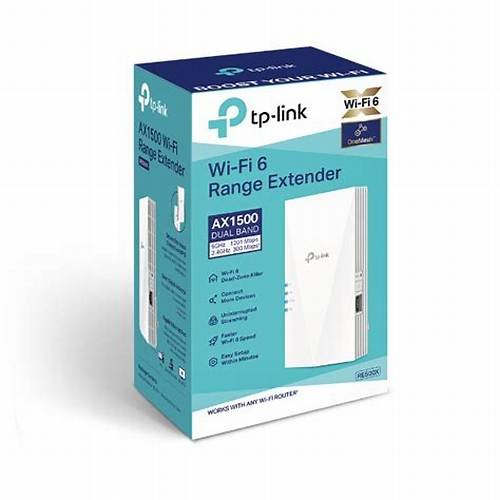 Exterior 2.4GHz RF Boost
TP-Link RE500X Wi-Fi 6 Outdoor Range Extender
Eliminates Red-Light Signal Drops
Exterior 2.4GHz RF Boost
TP-Link RE500X Wi-Fi 6 Outdoor Range Extender
Eliminates Red-Light Signal Drops
Root Causes of the Blinking White State
Under normal operational parameters, a white LED indicates a transient state: slow pulsing occurs during the boot sequence, and a steady white LED indicates factory-default readiness awaiting adoption. When the blinking white pattern persists indefinitely and the management interface remains unreachable via Layer 2 or Layer 3, the device has encountered a critical fault in its early boot phase. The primary failure modes include:
- SATA Storage Subsystem Failure: The UCK-G2-Plus utilizes a 1TB 2.5″ SATA hard disk drive (factory-shipped with a Toshiba MQ01ABD100V or similar 5400 RPM drive). When this drive develops bad sectors or mechanical failures, the system hangs indefinitely while attempting to mount root or application partitions (specifically UniFi Protect storage volumes).
- eMMC Flash Partition Corruption: The underlying Linux kernel resides on an internal 32GB eMMC storage module. Sudden power outages without a graceful shutdown can corrupt the
ext4journal, causing the system to stall during earlyfsckoperations. - Built-In Battery Backup Exhaustion: The Gen2 Plus contains an internal Lithium-ion battery intended to allow graceful shutdowns during mains power failure. When this battery degrades or swells, the device may brown out instantly when disconnected from PoE, causing filesystem corruption or preventing the power controller from completing boot-stage voltage validation.
- Power Delivery Incompatibilities: The device requires standard 802.3af PoE (consuming up to 12.95W) or Quick Charge 2.0/3.0 (9VDC/2A). Providing low-amperage standard 5V USB power or operating through an oversubscribed PoE switch port results in brownouts during CPU-intensive boot initialization.
- Failed UniFi OS Firmware Migration: Interrupted automated firmware upgrades corrupt the system image or PostgreSQL database schemas, preventing systemd target completion.
Diagnostic & Triage Matrix
| Observed Symptom | Primary Root Cause | Diagnostic Test | Remediation Path |
|---|---|---|---|
| Rapid Blinking White (>10 mins) | SATA HDD failure or partition hang | Boot device with HDD caddy ejected | Replace mechanical HDD with endurance SSD Check Long-Life Camera Cells on Amazon ↗ |
| Slow Pulsing White with Display Off | Insufficient wattage or bad PoE port | Check switch port PoE consumption / test with QC 2.0/3.0 adapter | Reassign to non-oversubscribed 802.3af/at port Check Sync Module Local Storage on Amazon ↗ |
| Alternating White/Blue, then White | Corrupted kernel/system image | Device fails to acquire DHCP reservation | Flash firmware via Recovery Mode Check Exterior 2.4GHz RF Boost on Amazon ↗ |
| Blinks White, screen shows “Power Lost” | Internal battery failure | Observe device behavior upon PoE disconnect | Hardware RMA or battery bypass/replacement |
| Blinks White, visible on ARP but no Web UI | Storage full or database corruption | Attempt SSH session over port 22 | Prune logs, repair database, or restore backup |
Step-by-Step Troubleshooting and Recovery Procedures
1. Isolate the Mechanical Storage Drive
The single most frequent failure point on the UCK-G2-Plus is the internal 2.5-inch hard drive. The factory drive is subjected to sustained heat and continuous 24/7 video write cycles from UniFi Protect, leading to thermal degradation.
- Disconnect power (PoE Ethernet cable 🔗 🔗 🔗 🔗 or USB-C power source).
- Push the mechanical tray release latch on the underside of the device and pull the drive tray completely out of the chassis.
- Power on the Cloud Key without the hard drive installed.
- Monitor the front LED: if the LED transitions from blinking white to solid blue or steady white (and the LCD displays an IP address or “Setup” prompt), the hard drive is defective or has corrupt partition tables.
- Resolution: Install a replacement 2.5″ SATA hard drive or a high-endurance SATA SSD (e.g., Samsung 870 EVO or Crucial MX500). Format the drive to ensure partition integrity; the Cloud Key will automatically initialize and format a newly detected blank drive upon boot.
2. Verify Power Delivery Requirements
Power degradation often mimics boot-loop issues. The UCK-G2-Plus requires stable power rail negotiation:
- PoE Delivery: Ensure the switch port delivers full 802.3af standard power. Inspect the switch’s total power budget. If the switch is near its PoE threshold, port throttling will starve the Cloud Key during processor spikes when booting the ARM Cortex-A53 cores.
- USB Power Delivery: Standard 5V/1A or 5V/2A “phone chargers” will fail to initialize the Cloud Key. Only use a power adapter supporting Qualcomm Quick Charge 2.0 (9V/2A) or QC 3.0. USB-C Power Delivery (PD) protocols can fail to negotiate proper profiles on earlier hardware revisions.
3. Force Recovery Mode and Flash Firmware
If the device remains stuck blinking white without a drive installed, the UniFi OS bootloader must be accessed directly via Recovery Mode to reflash the firmware image.
- Power off the Cloud Key completely.
- Press and hold the physical Reset button on the back panel.
- While holding the Reset button, reconnect the PoE cable or Quick Charge adapter.
- Continue holding the Reset button for approximately 10 to 15 seconds until the front LED begins an alternating White – Blue – Off pattern and the LCD display explicitly reads Recovery Mode.
- Release the Reset button.
- By default, if no DHCP server is detected, the device falls back to
192.168.1.30. If connected to a network with DHCP, check the router’s lease table for the assigned IP address. - Configure an administration workstation with a static IP address in the same subnet (e.g.,
192.168.1.25/24) and connect tohttps://192.168.1.30(or the DHCP IP) via a web browser. - Download the latest official UniFi OS firmware (
.binfile) for the UCK-G2-Plus from the official Ubiquiti download portal. - Select Firmware Update in the Recovery interface, upload the binary file, and initiate the flash sequence. Do not interrupt power during this process.
- Once flashing completes, the device will reboot. Allow up to 10 minutes for partition restructuring.
4. Advanced CLI Triage via SSH (If Recoverable)
If the device boots to the point where the network stack is operational and responds to ICMP echo requests (ping), obtain SSH access using standard administrative credentials to evaluate partition mounts and hardware health.
Execute the following diagnostic commands:
- Inspect the system boot log:
journalctl -xb -p errAnalyze the output for
systemd-fscktimeouts or failure to mount/data,/srv, or the HDD mount path (/volume1or/srv/unifi-protect). - Evaluate disk integrity:
smartctl -a /dev/sdaReview raw values for Reallocated_Sector_Ct, Current_Pending_Sector, and Offline_Uncorrectable. Any non-zero values on a spinning drive indicate immediate disk replacement is required.
- Force filesystem repair:
If partitions are unmounting due to dirty write bits, unmount and run a manual repair:
umount /dev/sda1
fsck.ext4 -y /dev/sda1
5. Mitigating the Degraded Internal Battery
The integrated lithium-ion battery in the UCK-G2-Plus is known to deteriorate after 2–3 years of continuous thermal exposure. A failing battery prevents system stabilization during clean boots. Symptoms include the device displaying “Power Lost” within seconds of boot or physical warping of the aluminum casing.
If the internal battery has expanded, it can pinch internal ribbon cables or cause trace damage on the logic board. While Ubiquiti does not sell drop-in replacement batteries, out-of-warranty hardware can be maintained by carefully desoldering or disconnecting the internal battery leads, allowing the unit to run strictly on continuous PoE/QC power (note: this removes safe shutdown functionality during ungraceful power loss, making an external UPS mandatory).
Hardware Hardening & Long-Term Prevention
- Transition to Solid-State Storage: Replace stock mechanical drives with high-endurance SATA SSDs. This reduces heat generation inside the chassis by up to 40%, preventing premature battery swelling and eliminating I/O bottlenecks during Protect recording.
- Disable Automatic System Updates: Schedule UniFi OS updates manually. Unmonitored automatic updates combined with transient network drops during download or flash stages frequently trigger boot-loop anomalies.
- Enforce UPS Isolation: Always power the upstream PoE switch through a Pure Sine Wave Uninterruptible Power Supply 🔗 🔗 🔗 🔗 (UPS) with automated NUT (Network UPS Tools) signaling to eliminate dirty shutdowns that trigger the blinking white filesystem check hang.
🔧 Need Replacement Hardware or Diagnostic Tools?
If your troubleshooting indicates a hardware failure, check the current prices and compatibility for UniFi Cloud Key Gen2 Plus on Amazon:
Check Price & Availability on Amazon →