
Fix Eufy HomeBase 2 red light unable to connect
Disclosure: As an Amazon Associate I earn from qualifying purchases. This technical guide may contain affiliate links for replacement hardware and diagnostic tools.
The Eufy HomeBase 2 red light signifies a critical failure in the device’s ability to establish a handshake with the local area network (LAN) or a failure to reach the Eufy Cloud via the Wide Area Network (WAN); resolution requires systematic troubleshooting of the physical layer, DHCP address allocation, and outbound firewall permissions.Verified Replacement Hardware & Test Gear
Click any component image or button to verify current Amazon stock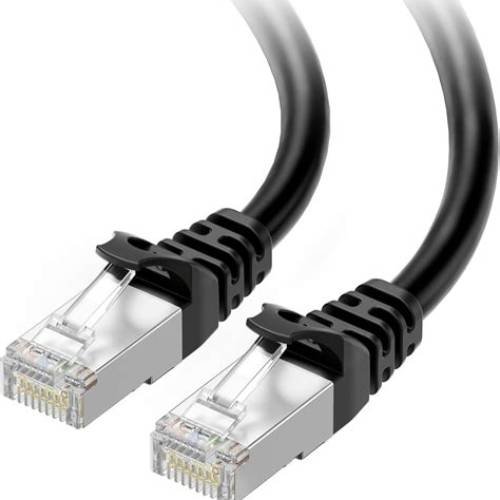 HomeBase Uplink Replacement
Cable Matters Cat6A Snagless Shielded Ethernet Patch Cord
Shielded Pure Copper RJ45 Lead
HomeBase Uplink Replacement
Cable Matters Cat6A Snagless Shielded Ethernet Patch Cord
Shielded Pure Copper RJ45 Lead
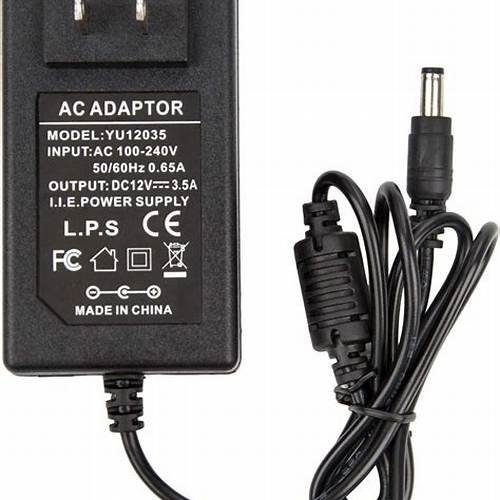 12V Regulated Hub Power
UL-Listed 12V Replacement AC Power Adapter for HomeBase/Router
Prevents Red-Light Boot Loops
12V Regulated Hub Power
UL-Listed 12V Replacement AC Power Adapter for HomeBase/Router
Prevents Red-Light Boot Loops
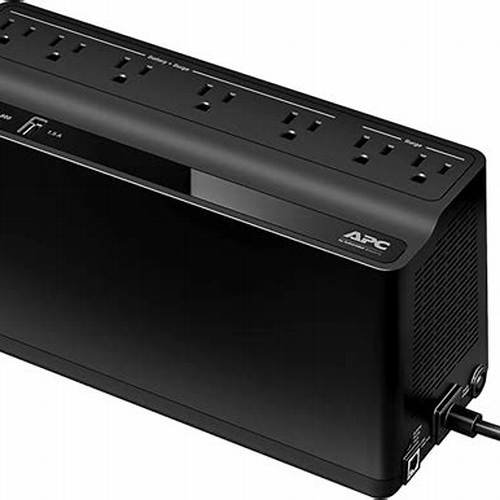 Security Hub Battery Backup
APC Back-UPS 600VA Compact UPS Battery Backup (BE600M1)
Keeps Cameras Online in Outages
Security Hub Battery Backup
APC Back-UPS 600VA Compact UPS Battery Backup (BE600M1)
Keeps Cameras Online in Outages
Diagnostic Interpretation of HomeBase 2 LED States
To resolve the connectivity failure, one must first differentiate between the two distinct red light behaviors on the HomeBase 2. A solid red light typically indicates that the device has powered on and passed its initial POST (Power-On Self-Test) but has failed to obtain an IP address or reach the internet gateway. A flashing red light generally points to a disconnected Ethernet cable 🔗 🔗 🔗 🔗 or a failure in the Wi-Fi bridge if the device was previously configured for wireless operation.
| LED Status | Technical Meaning | Primary Failure Point |
|---|---|---|
| Solid Red | System Booted; No Internet Connectivity | WAN Gateway/DNS Resolution Check HomeBase Uplink Replacement on Amazon ↗ |
| Flashing Red | Physical/Link Layer Disconnected | Ethernet Cable/Router Port/Wi-Fi SSID Check 12V Regulated Hub Power on Amazon ↗ |
| Solid Blue | Fully Authenticated and Online | N/A (Normal Operation) Check Security Hub Battery Backup on Amazon ↗ |
| Flashing Blue | Pairing Mode or Firmware Update | Temporary State |
Layer 1: Physical Link and Infrastructure Verification
Network connectivity begins at the physical layer. If the HomeBase 2 exhibits a flashing red light, the first step is to verify the integrity of the RJ45 termination and the Category 5e/6 cabling. The HomeBase 2 requires a stable 10/100Mbps Ethernet link. Ensure the cable is seated firmly in the WAN/LAN port of the router and the HomeBase 2. Swap the cable with a known-working patch lead to rule out internal wire fractures or oxidation on the pins.
Furthermore, examine the router‘s LAN port. If the port LED is not illuminating, the issue may reside in the router’s port configuration or a hardware failure. Test the HomeBase 2 on a different LAN port. Note that the HomeBase 2 should be connected directly to the primary router or a high-quality unmanaged switch; connecting through secondary extenders or powerline adapters can introduce latency and packet loss that triggers the red light error state.
Layer 3: DHCP Lease and IP Address Allocation
Once the physical link is established, the HomeBase 2 must request an IPv4 address via DHCP (Dynamic Host Configuration Protocol). A solid red light often indicates the HomeBase 2 has failed to receive a valid IP address. Access your router’s web management interface (typically 192.168.1.1 or 192.168.0.1) and navigate to the “DHCP Client List” or “Attached Devices” section.
If the HomeBase 2 does not appear in the list, the DHCP pool may be exhausted, or the router’s MAC filtering (Access Control) may be blocking the device. Ensure that the MAC address printed on the bottom of the HomeBase 2 is not blacklisted. For optimal stability, it is recommended to reserve a static IP address for the HomeBase 2 within the router settings. This prevents IP conflicts and ensures that the device maintains the same network identity after power cycles.
Advanced Network Configuration: Port Forwarding and DNS
If the HomeBase 2 has a local IP address but remains solid red, it is failing to communicate with Eufy’s external servers. This is often due to restrictive firewall settings or DNS hijacking. The HomeBase 2 relies on specific TCP and UDP ports for P2P (Peer-to-Peer) communication and cloud syncing.
Outbound Port Requirements
Ensure your router is not blocking outbound traffic on the following ports:
- TCP Ports: 80, 443
- UDP Ports: 10000-20000 (used for P2P video streaming)
- NTP Port: 123 (used for time synchronization)
If you are utilizing a Pi-hole, AdGuard Home, or a custom DNS provider (like OpenDNS), check the logs for blocked queries to eufylife.com or amazonservices.com (where Eufy hosts its backend). As a troubleshooting step, temporarily switch the router’s DNS settings to Google Public DNS (8.8.8.8 and 8.8.4.4) or Cloudflare (1.1.1.1) to rule out ISP-level DNS resolution failures.
Addressing 2.4GHz Frequency Interference
While the HomeBase 2 is initially set up via Ethernet, its communication with the eufyCams occurs over a proprietary 2.4GHz Wi-Fi sub-network. If you are attempting to switch the HomeBase 2 to a Wi-Fi connection (removing the Ethernet cable), a red light indicates the HomeBase cannot authenticate with the wireless access point. The HomeBase 2 does not support 5GHz bands.
Ensure that your 2.4GHz SSID is utilizing WPA2-PSK (AES) encryption. The HomeBase 2 may struggle to connect to “Dual-Band” SSIDs where the router attempts to steer the device to the 5GHz band (Band Steering). If connectivity fails, temporarily disable Band Steering or create a dedicated 2.4GHz IoT VLAN. Furthermore, set the 2.4GHz channel to a non-overlapping frequency (Channel 1, 6, or 11) with a channel width of 20MHz to minimize electromagnetic interference (EMI).
Performing a Hard Factory Reset and Re-initialization
If logical and physical network checks fail to resolve the red light, the HomeBase 2 firmware may be in a hung state or corrupted. A factory reset will revert the device to its “Out of Box” state, erasing all locally stored data and paired cameras.
Reset Procedure
- Locate the “Cycle” or “Reset” hole on the back of the HomeBase 2.
- Using a SIM ejector tool or a paperclip, press and hold the button for approximately 10 seconds.
- Wait for the device to emit an audible alert and for the LED to transition through its boot sequence.
- Delete the HomeBase 2 from the Eufy Security App.
- Re-add the device as a new installation while connected via Ethernet.
ISP and MTU Considerations
In rare instances, the red light persists due to the Maximum Transmission Unit (MTU) size configured on the router. If the MTU is too high, Eufy’s encrypted packets may be fragmented, leading to a connection timeout. The standard MTU is 1500; however, if you are on a PPPoE connection (common with DSL/Fiber), ensure the MTU is set to 1492. High packet loss or latency (jitter > 30ms) on the ISP side can also prevent the HomeBase 2 from maintaining a stable heartbeat with the Eufy cloud, resulting in an intermittent red light. Perform a ping test to a reliable host (e.g., ping -t 8.8.8.8) to verify WAN stability.
Power Supply Specification Check
The HomeBase 2 requires a specific voltage and amperage (12V/2A) to drive both its internal ARM processor and the localized 2.4GHz radio. Using an underpowered third-party power adapter can lead to “brownout” conditions where the CPU boots (red light) but the networking hardware fails to initialize. Always use the original Eufy-provided power supply 🔗 🔗 🔗 🔗 to ensure sufficient current for all operational states.
🔧 Need Replacement Hardware or Diagnostic Tools?
If your troubleshooting indicates a hardware failure, check the current prices and compatibility for eufy Security HomeBase 3 on Amazon:
Check Price & Availability on Amazon →